Showing posts with label Windows 2012. Show all posts

Saturday, December 29, 2012

How to Reset Windows 8 and Windows 2012 Server Administrator or User Password – When You Do not Have A Choice

When we forget a user password especially the administrator password in Windows operating systems, that really puts us in difficult situation. By default Windows OS is having few options to recover the forgotten passwords, like password hints and reset disks. Also, you could find few tips to recover them by using OS CD/DVD or system restore points. But how about a situation that nothing is working or you do not have any backup plans to recover the administrator password?. This guide shows how you can use a simple software to reset Windows 8 and Windows 2012 server administrator passwords within a minute.
This Windows 8 password reset tool is not free, it’s a paid and 100% working solution. There are few free password recovery softwares available on internet, but most of them are difficult to use by novice computer users. Even expert users might struggle at the first time with these free utilities.
windows 8 admin password reset

Spotmau BootSuite 2012 is the product used in this guide to reset Windows 8 and Windows 2012 administrator passwords easily. This tool simply removes the particular user password instead of finds it. I prefer this method because finding a password normally takes time as it needs to check with some dictionaries.
Spotmau BootSuite 2012 is not only having Windows password reset tool but also several useful must have tools for your desktop or server computer.
Rescue crashed computer or hard drive, data recovery from crashed computer or hard drive, recover your Windows CD and office product key, partition, format and clean up your hard drive, backup and restore files and system, clone entire hard drive or partition are the other useful utilities you will be getting with this great product.

How to Reset Windows 8 Administrator Password

Once you have downloaded Spotmau BootSuite 2012, you must install it on a computer to make bootable CD.
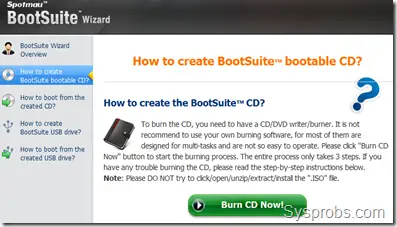
bootsuite cd make
Then insert it to the Windows 8 computer where you need to reset administrator or other users password.
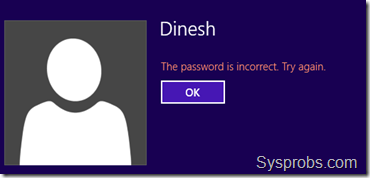
windows 8 error by wrong password
Once the computer booted with Spotmau bootable CD, you can go to ‘Password & Key Finder’ menu as shown below.
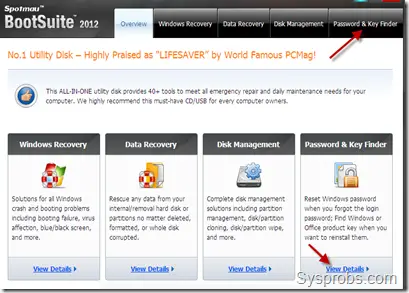
main screen to recover admin password in windows 8
Click on the ‘Admin Password Resetter’ button to reset Windows 8 admin password.
It automatically detects the OS type. You need to select the user from drop down box for resetting.
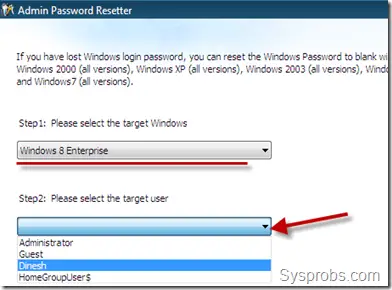
select user
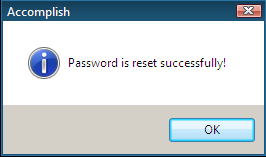
Yes, that is so easy. Just press Reset button and confirm it again. You will get a successful password reset message.
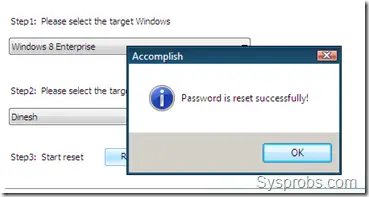
success screen
After password has been reset, you can reboot the PC and login without entering a password for particular user.

How to Reset Administrator Password in Windows 2012 Server
Spotmau BootSuite 2012 works well on Windows 2012 server versions to reset forgotten admin password.
Once you booted server OS with bootsuite CD, you can go to same place to reset admin password. The utility detects 2012 server version automatically. Select the user account that you need to reset the password.
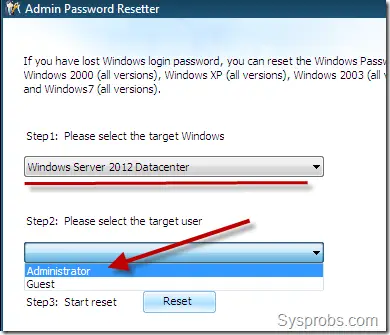

reset screen in windows 2012
It does the job well by removing the forgotten administrator password in Windows 2012 datacenter version. After the password has been successfully reset, you can loing to to server without typing any passwords. Here is my server which logged in with administrator account without any passwords.
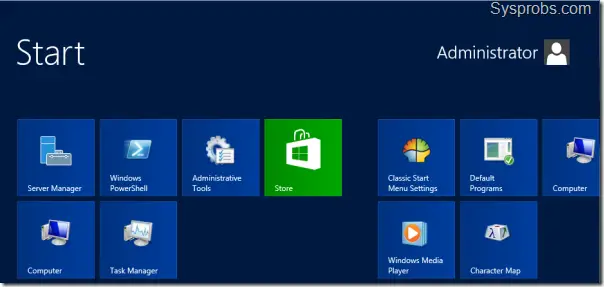
after reset in windows 2012
This product is really good and I’m using it for last three years, it never let me down on desktop or server computers to reset passwords. 100% success password reset rate and 90 days money back guarantee available from software vendor.

Saturday, December 8, 2012

How to Get Start Button and Start Menu in Windows 2012 Server

Here is the way to get back the traditional start menu and start button in Windows 2012 server operating system.Like Windows 8, Windows 2012 server also comes without start button/ menu. Therefore you may feel uneasy while using this OS initially. If you like to get the start button/menu back, you can follow these steps. It works well on Windows 2012 standard and data center versions.

Okay here is an important point, getting back the start button and menu in Windows 2012 is not like showing My computer icon or installing desktop experience, which means it is not a hidden Windows feature that can be installed or enabled in OS level. It can be done by a third party software only. Therefore, before try this method on your production Windows 2012 server, double check whether really you want this feature by installing a third party software. Somehow I do not recommend this in the production environment as these types of applications might open security holes on the server OS. Anyhow, if you are running Windows 2012 in virtualized environment for testing or learning purpose, then you can try this method.
This small start button application built for Windows 8 desktop version, but the same works for 2012 too.

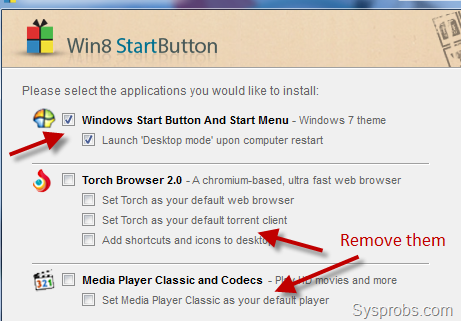
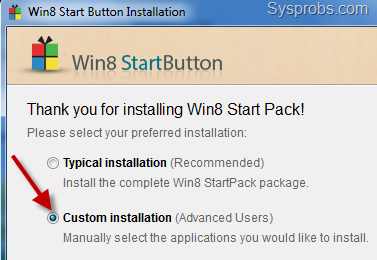
You can download Win8 StartButton from official site here. Your windows 2012 has to have internet connection to continue the installation. I recommend to select ‘Custom installation’ as shown below.
installation
By this custom installation method we can avoid unwanted extra programs during the installation as below.

more options
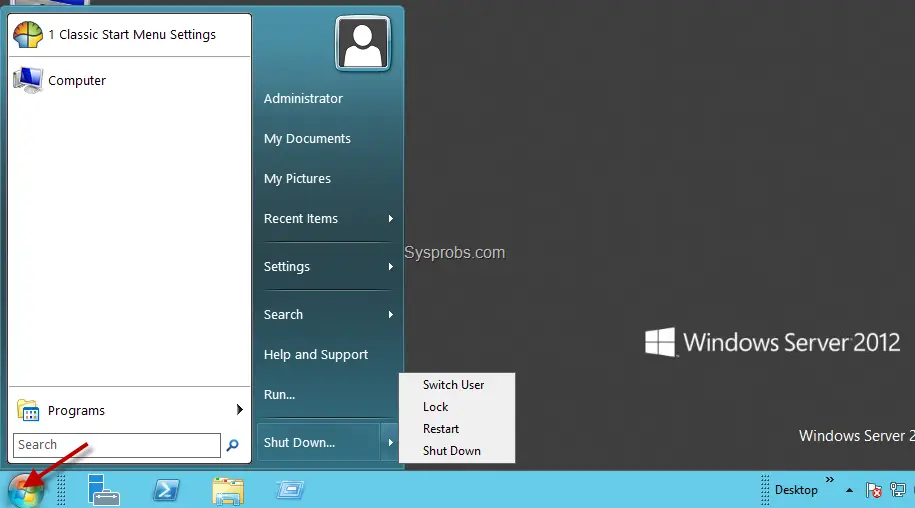
Once installation is completed, you can see the familiar start button and start menu in Windows 2012 server. To customize this start button and menu, you have to use the particular application settings only. Do not look for the normal Windows settings for it.

installed start button in windows 2012
If you are looking for similar windows 8 start button applications, you can find theme here at cnet.com, but I’m not sure how they will be working on Windows 2012 server.
I have found an interesting article on getting back some of your favorite server GUI features on Windows 2012, you can go through this guide. It explains each steps nicely to work with Windows 2012 server GUI including Background Info (BGI).

Wednesday, November 21, 2012

How to Show My Computer Icon on Windows 2012 Server Desktop and Add Run to Windows Task Bar

The your first view on Microsoft server operating system Windows 2012 will be different than earlier operating systems. The different interface, Metro icons and missing elements such as Windows start button/bar are the noticeable changes in the desktop. By default My Computer icon is also not included and you can’t get it back like how it was in Windows 8 or other versions. Here comes a simple guide about how to show My computer icon on Windows 2012 server desktop. Also, if you want to add ‘Run’ to Windows task bar for easy accessing, that is also covered here.
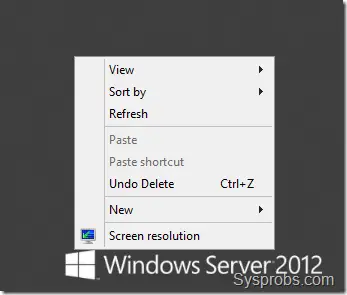
Windows 2012 server is more powerful and secured server OS, Microsoft has enhanced built-in security by not including all features in server OS by default. To get back most of the desktop experience features like earlier operating systems, we need to install an additional feature here. By default you will not find ‘Personalize’ option on desktop menu which usually leads desktop icons settings.
Sysprobs earlier covered how to show My computer on Windows 8 desktop, but the same method will not work here because of missing Personalize option in menu. 

Steps to Show My Computer on Windows 2012 Server Desktop
As mentioned earlier, this feature is not included by default. If you can manage the server without seeing My computer icon on desktop or other personalize options, better continue with default options without installing additional features. But if you desperately want it, then continue other steps.
missing personalize option
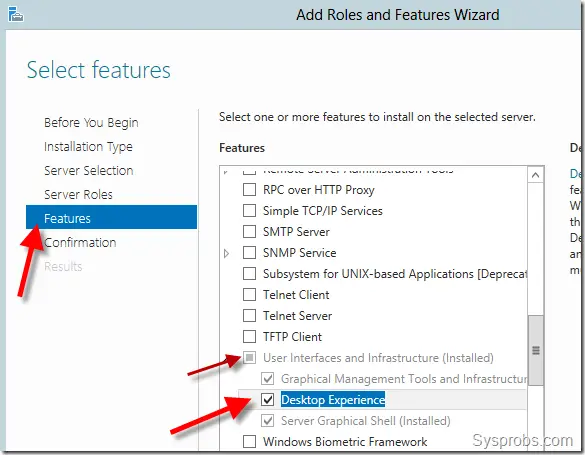
We must install ‘Desktop Experience’ feature to get back personalize options which will help to get My computer back on Windows 2012 server desktop.
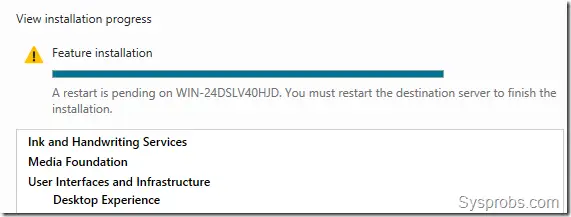
Go to ‘Add Roles and Features’ in server dashboard, select ‘Role-based or Feature-based installation’ , do not select anything in Server Roles, and under Features select ‘Desktop Experience’ as mentioned below.

select desktop experience in features
Install other required features too.
You must restart the server after the installation.

restart screen
Even though this feature would have added several options, our concern is to get My computer icon on desktop.
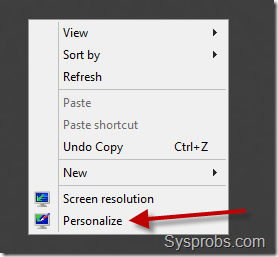
After the restart you must be seeing the ‘Personalize’ from right click menu from desktop (which was not shown in earlier screenshot).

Show My Computer Icon on Windows 2012
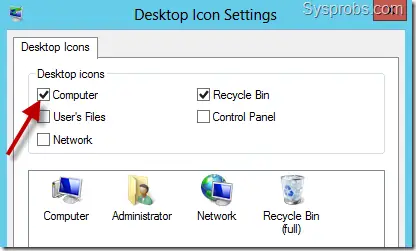
Click on Personalize and ‘Change desktop icons’ at top left corner. It will bring back our traditional desktop icons settings like Windows 7 or 8.
Select the icons you want to show, in our case it is My Computer icon.

Show My Computer Icon on Windows 2012
That will show My computer icon in Windows 2012 server desktop.
  
How to Add Run to Windows Task Bar in Windows 2012 Server
To add Run in Windows 2012 server task bar like how Windows PowerShell was already added by default, follow these steps.

windows powershell
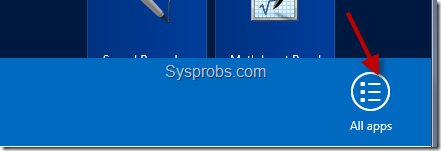
First go to the ‘All Apps’ view. If you are already in Metro UI view you can right click on empty space, then click on ‘All Apps’ icon which will appear at bottom.

all apps
If you are in desktop view, you need move the cursor to top right corner to get more options. Click on ‘Start’ icon to get metro UI, then follow above step to get All apps icon.
Once you can see the all applications, find out Run and right click on it. More options will appear at bottom of the screen. You can select ‘Pin to taskbar’ here, even you can pin Run icon to start menu too.

right click run to add to windows 2012 task bar or start menu
That’s it, we have added Run in Windows 2012 server task bar (and in start menu too)

added run in windows 2012 task bar
Hope this simple guide helps someone here. Stay tuned with Sysprobs for more Windows 2012 server guides.